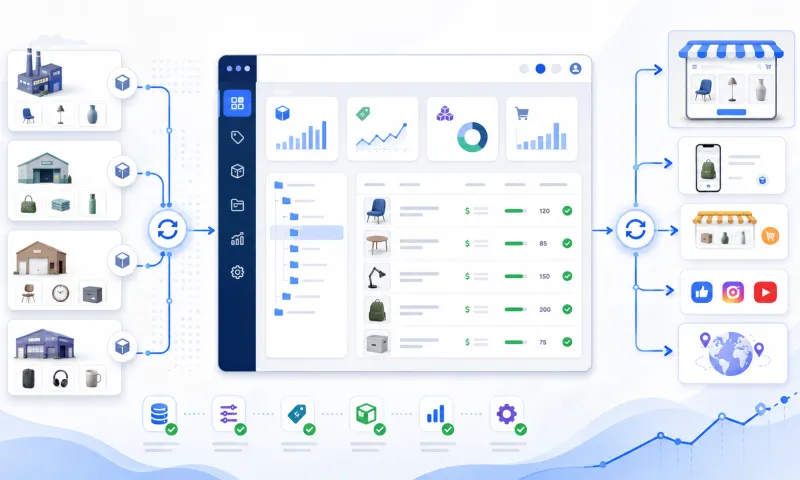
Manually adding a few dozen products to WooCommerce is not particularly difficult. However, the situation changes when a supplier catalogue contains thousands or even hundreds of thousands of products, while prices, stock levels, and product availability change regularly.
In such cases, a one-time CSV import is no longer enough. You need a continuous integration that regularly retrieves the latest supplier data, processes it, and sends it to WooCommerce.
An automated supplier product import allows you to:
create new products;
update prices and stock levels;
manage categories and attributes;
import product variants;
optimise product images;
apply pricing rules;
disable or remove products that are no longer available.
In this article, we will explain how WooCommerce product imports from suppliers work, what data is required, and which common problems should be avoided.
What is an automated supplier product import?
An automated product import is a process in which product information from a supplier's system is regularly transferred to your WooCommerce store.
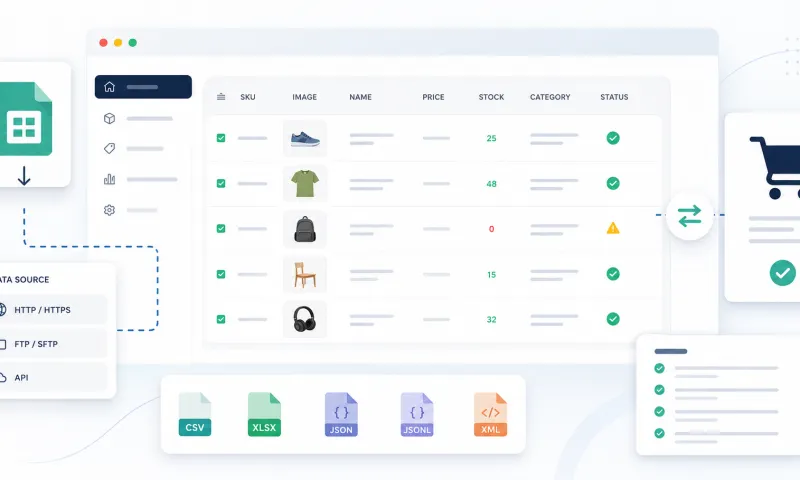
Suppliers usually provide their product data in one of the following formats:
XML file;
CSV file;
JSON or JSONL file;
XLSX spreadsheet;
API integration.
It is important to distinguish between a one-time product import and continuous product synchronisation.
A one-time import can help you quickly create products in a WooCommerce store. However, some of the information may become outdated within a few days. The supplier may change a price, sell out of a product, or add a new variation.
Automated synchronisation regularly checks the supplier's data and updates the WooCommerce catalogue.
For example:
The supplier changes the wholesale price of a product.
The integration retrieves the new price.
The selling price is recalculated according to your pricing rule.
The updated price is sent to WooCommerce.
This removes the need to manually inspect the supplier's catalogue every day.
Which product data can be imported?
The amount of information that can be imported depends on the data provided by the supplier.
It is usually possible to import:
product name;
short and long descriptions;
SKU;
EAN or GTIN code;
brand;
supplier category;
wholesale price;
recommended retail price;
stock quantity;
weight;
dimensions;
product images;
product attributes;
product variants;
shipping information;
technical specifications.
For example, a clothing supplier may provide one parent product with several variations:
size S, black;
size M, black;
size L, blue.
In WooCommerce, this information would normally be created as a variable product with separate variations.
If the supplier data is not processed correctly, every variation may be created as a separate product. It is therefore important to understand the supplier's data structure before starting the import.
How is a supplier connected to WooCommerce?
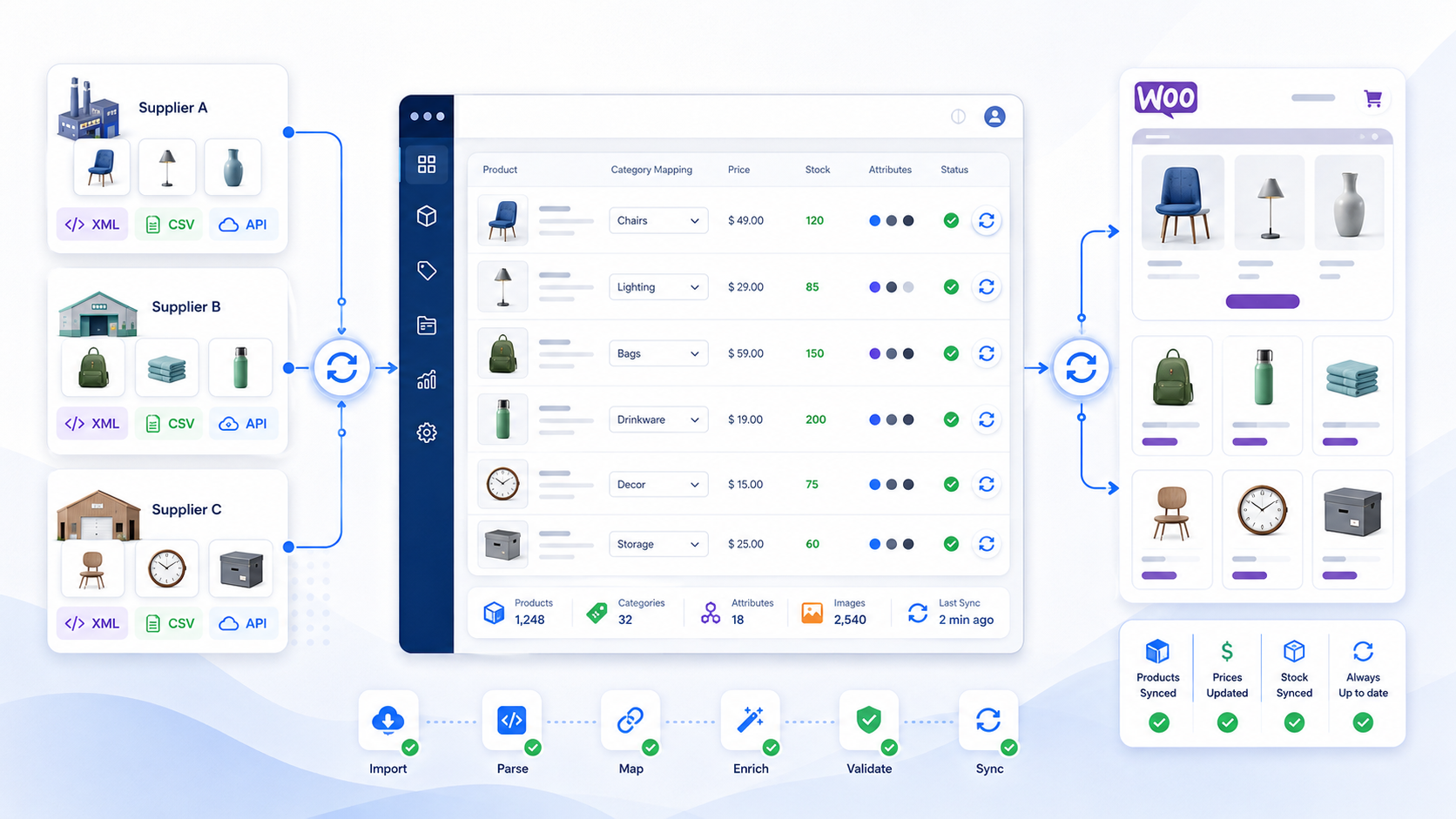
A supplier integration can be divided into several stages.
1. The supplier data source is added
First, the supplier's XML, CSV, JSON file, or API is added to the system.
The data source may be:
a publicly accessible URL;
a password-protected file;
a file hosted on an FTP or SFTP server;
an authenticated API;
a catalogue that is periodically received by email.
The system then regularly retrieves the latest version of the supplier data.
2. The supplier data structure is identified
Different suppliers use different field names for the same information.
In one XML file, the product price may be represented as:
<price>25.00</price>In another file, it may be:
<wholesale_price>25.00</wholesale_price>Another supplier may provide prices either including or excluding VAT.
It is therefore necessary to determine which supplier field represents:
the product name;
the product identifier;
the price;
the stock quantity;
the category;
the images;
the product variants.
3. Products are filtered
You do not need to import the supplier's entire catalogue.
You may choose to import only:
specific categories;
selected brands;
products with stock greater than zero;
products above a selected minimum price;
products with an EAN code;
products that have images;
products that meet your required profit margin.
Filtering helps prevent your store from being filled with thousands of irrelevant, unavailable, or unprofitable products.
4. Categories and attributes are mapped
A supplier's category structure rarely matches the structure of a WooCommerce store.
The supplier may use a category such as:
Women / Shoes / Sneakers
While your WooCommerce store may use:
Women's Footwear / Trainers
In this case, the supplier category is mapped to the relevant category in your store.
The same principle applies to product attributes.
For example:
BLACK;Black;black colour;black_color.
All of these values can be normalised into a single WooCommerce attribute value: Black.
5. Pricing rules are applied
A supplier's wholesale price normally cannot be used directly as the selling price.
You may need to account for:
VAT;
payment processing fees;
shipping costs;
advertising costs;
returns;
your desired profit margin.
A simple pricing formula could look like this:
Selling price = wholesale price × 1.25 + €3If the wholesale price is €20, the selling price would be:
20 × 1.25 + 3 = €28However, one formula may not be suitable for the entire catalogue.
Lower-priced products often require a larger fixed markup, while more expensive products may remain profitable with a smaller percentage markup.
Different pricing rules may therefore be applied according to:
category;
brand;
supplier;
wholesale price range;
product type.
6. Products are sent to WooCommerce
Once the products have been filtered, the categories mapped, and the prices calculated, the prepared products are sent to WooCommerce.
The integration may create:
simple products;
variable products;
product variations;
categories;
attributes;
product image galleries.
During later synchronisations, the system does not create the same product again. Instead, it updates the existing WooCommerce product.
How are prices and stock levels updated?
Price and stock updates are among the most important parts of a supplier integration.
If the supplier changes prices every day but your WooCommerce store is updated only once a month, you may sell products at an outdated and unprofitable price.
A similar problem occurs with stock levels.
Imagine that a supplier has only one unit of a product available. Another customer buys it, but your store continues to show the product as being in stock.
Your customer places an order, and only then do you discover that the product is no longer available from the supplier.
Automated synchronisation reduces the likelihood of such situations.
Depending on the supplier and the needs of the store, the data may be updated:
every few minutes;
every hour;
several times per day;
once per day.
It is often unnecessary to update every type of product data at the same frequency.
For example:
prices and stock levels may be updated every hour;
descriptions and images may be updated once per day;
the entire catalogue may be reviewed once per week.
What happens when a product disappears from the supplier feed?
A product missing from a supplier file does not always mean that it has been permanently discontinued.
There may be several reasons:
the product is temporarily out of stock;
the supplier changed the product identifier;
the product was moved to another catalogue;
the supplier feed was generated incorrectly;
the product has been permanently discontinued.
For this reason, it is generally not advisable to delete the product from WooCommerce immediately.
A safer option is to:
set the stock quantity to zero;
change the product status to draft;
hide the product from the catalogue;
mark the product as inactive;
delete it only after a defined period.
This helps prevent products from being lost because of a temporary supplier data issue.
Common WooCommerce import problems
Duplicate products
Duplicate products usually appear when there is no reliable unique product identifier.
The integration may use:
the supplier's product ID;
SKU;
EAN;
a combination of the supplier ID and product ID.
The selected identifier must remain stable over time.
Changing SKU values
Some suppliers use SKU values as internal warehouse codes rather than permanent product identifiers.
If the SKU changes, the system may no longer recognise the existing WooCommerce product and may create a new one.
It is therefore important to determine which supplier field is the most stable before starting the integration.
Incorrectly created variations
Importing product variations is more complex than importing simple products.
The integration must correctly identify:
the parent product;
variation attributes;
the SKU of each variation;
the price;
the stock quantity;
the relevant image.
If the supplier data does not provide a clear relationship between the parent product and its variants, additional processing rules may be required.
Prices including or excluding VAT
Before importing prices, you must determine whether the supplier price is:
inclusive of VAT;
exclusive of VAT;
a recommended retail price;
a wholesale price;
a special price assigned to your supplier account.
Incorrectly interpreting a supplier price can completely eliminate your profit margin.
Oversized product images
Suppliers often provide very large product images.
Importing them directly into WooCommerce can:
consume a large amount of server storage;
slow down product pages;
increase import processing time;
increase the size of website backups.
Before sending images to the store, it is therefore useful to optimise, resize, and, where appropriate, convert them into a more efficient image format.
Manually edited product data is overwritten
If you manually edit a product name or description in WooCommerce, the next synchronisation may replace it with the original value provided by the supplier.
It is therefore important to define which fields:
are always updated from the supplier;
are updated only when the product is first created;
are managed exclusively inside WooCommerce.
For example, prices and stock levels may be updated continuously while manually edited product descriptions remain unchanged.
A simple import plugin or a separate integration platform?
WooCommerce products can be imported using various WordPress plugins. Such a solution may be sufficient when you have one relatively small supplier file and a simple product structure.
However, additional requirements usually appear as the catalogue grows.
Simple import plugin | Separate integration platform |
|---|---|
Data is processed on the WordPress server | Data is processed separately from the store |
Usually focused on a single import workflow | Designed for continuous synchronisation |
May place additional load on the WooCommerce store | Reduces the processing load on the store server |
Limited management of multiple suppliers | Multiple suppliers can be managed centrally |
More difficult to manage multiple sales channels | Separate export profiles can be created |
Limited catalogue preview functionality | Products can be reviewed before they are exported |
Unified-Suppliers acts as an intermediary layer between the supplier and WooCommerce.
The platform allows you to:
connect a supplier data source;
filter products;
map product categories;
apply pricing rules;
manage translations;
optimise product images;
preview products;
send prepared product data to WooCommerce.
This means that most of the data processing does not take place directly inside the WooCommerce store.
Who benefits from automated WooCommerce imports?
An automated integration is especially useful when:
you work with more than one supplier;
your catalogue contains thousands of products;
supplier prices change frequently;
stock levels need to be updated regularly;
you sell products with many variations;
you want to automate a dropshipping store;
you are planning to expand your product catalogue;
you want to sell through multiple channels;
manual product management takes too much time.
Manual management may still be practical for a small catalogue. However, as the number of products and suppliers increases, automation becomes not only convenient but necessary.
How should you prepare for a supplier integration?
Before starting the integration, it is useful to obtain the following from the supplier:
A sample XML, CSV, or JSON file, or access to the API documentation.
Information about how frequently the data is updated.
Confirmation of whether prices include VAT.
Documentation describing product and variation identifiers.
Information about product image usage rights.
A list of supplier categories.
An explanation of how out-of-stock products are represented.
Information about products that have been removed from the catalogue.
You should also decide in advance:
which categories you want to import;
which pricing formula should be applied;
whether products with no stock should be imported;
whether supplier descriptions may overwrite edited descriptions;
how missing products should be handled;
how frequently the product data should be updated.
Summary
Importing WooCommerce products from a supplier involves much more than simply uploading products to an online store.
A complete integration should handle:
the creation of new products;
price and stock updates;
product variation management;
category mapping;
attribute normalisation;
pricing rules;
image processing;
inactive product management.
A well-designed automation process reduces manual work and allows you to expand the product catalogue without forcing your team to inspect supplier files every day.
Would you like to connect a supplier to WooCommerce?
With Unified-Suppliers, you can centrally process supplier product data and send prepared products to WooCommerce.
Send us a sample of the supplier's:
XML file;
CSV file;
JSON file;
XLSX spreadsheet;
or API documentation.
We will review the data structure and assess the available automation options.
Start using Unified-Suppliers Contact us about a supplier integration
Frequently asked questions
Can WooCommerce directly import a supplier XML file?
The standard WooCommerce product importer is mainly designed for CSV files. Importing XML data normally requires an additional plugin or a separate integration that converts the XML data into a structure supported by WooCommerce.
How frequently should supplier stock levels be updated?
This depends on the supplier catalogue and the speed at which products are sold. Stock levels for fast-moving products may need to be updated every hour or more often. For slower-moving catalogues, several updates per day may be sufficient.
Can products be imported from multiple suppliers?
Yes. However, you need to manage duplicate products, different category structures, product attributes, and supplier-specific pricing rules. A centralised supplier data management platform makes this easier.
Can manually edited WooCommerce descriptions be protected from updates?
Yes. You can define which fields are updated continuously and which fields are sent only when the product is first created.
What happens when a supplier no longer has a product?
The product stock can be set to zero, the product can be hidden from the catalogue, moved to draft status, or removed after a defined period.
Can different pricing rules be applied?
Yes. Different rules can be applied according to the supplier, category, brand, wholesale price, or other product data.